AI assistants are now part of how teams write code, run operations, and manage content. But when it comes to media, most assistants hit a wall. They can describe how to upload a file, tag an asset, or purge a CDN cache. They can't actually do it in your account.
The Model Context Protocol (MCP) changes that. It is an open standard that lets AI assistants connect to external tools and data in a structured, secure way.
Today, ImageKit offers three hosted, remote MCP servers. Connect them to Claude, Cursor, VS Code Copilot, Windsurf, Codex, or any other MCP client, and your assistant can search, upload, organize, share, and deliver media in your ImageKit account, using plain English.
There is nothing to install, run, or keep updated. You add a URL to your client, sign in to ImageKit once, and choose exactly what the assistant is allowed to do.
Three servers, one for each job
| Server | URL | What it's for | Authentication |
|---|---|---|---|
| DAM | https://imagekit.io/mcp/dam | Working in your media library: search, upload, download, organize, tag, share, and govern assets | Sign in with ImageKit |
| Admin | https://imagekit.io/mcp/admin | Account-level delivery setup: origins, URL endpoints, usage, and usage analytics | Sign in with ImageKit |
| DevTools | https://devtools-mcp.imagekit.io/mcp | Answering "how do I…" questions from the docs and building transformation URLs | None |
The DAM and Admin servers are separate connections with separate permissions. A token granted for the DAM server cannot call Admin tools, and vice versa. You can give a content team's assistant access to the media library without also giving it the ability to change where your images are fetched from.
What the DAM MCP server can do
The DAM server lets an assistant work in your media library on your behalf, with the same access your ImageKit user already has. It currently exposes more than 70 tools. Here is what they cover.
Search the library the way people describe assets
People don't look for IMG_4821.jpg. They look for "approved Nike banners for EMEA from last month" or "product shots over 2 MB that are still missing a category."
The search_media_library tool supports ImageKit's full search query language. That includes filters on name, tags (including AI tags), folder path, format, dimensions, file size, upload date, uploader, publish status, transparency, custom metadata, and embedded metadata such as EXIF capture date or location.
The server also teaches the assistant how to search well. Before it guesses at a filter, the assistant looks up your account's custom metadata fields and existing tags, then maps your everyday words to the right fields. "Nike" becomes "customMetadata.brand" = "nike", not a filename search that misses half the results.
Upload without pushing files through the chat
Passing a local file's contents through the conversation would fill the model's context window, cost tokens, and make large images or videos impractical. So ImageKit's DAM server keeps file bytes out of the chat entirely:
- In clients that support interactive MCP Apps, calling
upload_fileopens an upload form inside the chat. You pick the file, choose a destination folder (with suggestions from your library), add tags (with suggestions from your existing tags), and fill in custom metadata fields. Those fields respect any path policies defined for the destination folder. The file then goes directly to ImageKit, never through the model. - In other clients, the assistant requests a short-lived, signed upload credential and runs the upload from your environment, either from a local file path or by having ImageKit fetch a public URL. The file bytes never enter the conversation.
So you don't pay tokens for the file, and a 40 MB video is as easy to upload as a thumbnail.
Organize files and folders in bulk
Ask the assistant to tidy up a campaign folder and it can:
- Create, copy, move, rename, and delete folders.
- Copy, move, rename, and delete files, including bulk deletes.
- Add or remove tags across many files at once, and remove AI-generated tags you don't want.
- Bulk-update custom metadata values.
- Publish or unpublish files.
- Track long-running bulk jobs until they finish.
Manage your taxonomy and governance rules
The assistant can do more than move files around. It can also help maintain the structure that keeps a library usable:
- Create, update, and delete custom metadata fields, and check which fields apply to a given set of files.
- Create and manage path policies that enforce folder-level rules.
- Create and manage saved extensions (presets), and apply extensions such as AI tagging to many files at once.
Share and collaborate
- Create, update, and remove public links for assets, and list every public link in the account.
- Create and manage media collections, and add or remove assets.
- Read and update access control on files, folders, and collections. For example: "Give the design team contribute access to /campaigns/diwali."
Versions, downloads, generated images, and cache
- List, inspect, restore, and delete file versions.
- Download a single file, or bundle several files, with optional transformations, into a ZIP archive.
- List and delete AI-generated images.
- Purge the CDN cache for updated assets and check purge status.
Interactive results, not walls of JSON
In clients that support MCP Apps, search results, file details, and uploads open as interactive views inside the conversation. Search results appear as a thumbnail grid. You can select files and download them, and selecting several files produces a ZIP. File details show a preview alongside tags and metadata. In clients without MCP Apps, the same tools return structured data the assistant can reason over.
What the Admin MCP server can do
The Admin server is for the people who set up how media gets delivered. It lets an assistant:
- List, create, update, and delete origins, the external storage such as S3, GCS, Azure Blob, or a web server that ImageKit fetches from.
- List, create, update, and delete URL endpoints, which control how URLs map to origins.
- View account usage totals and usage analytics.
This makes questions like "Which URL endpoints point to the old S3 bucket?" or "How did our bandwidth change this month compared to last month?" one-line requests.
What the DevTools MCP server can do
The DevTools server makes any assistant better at ImageKit, even before you connect your account. It is public and needs no sign-in, and it exposes two tools:
search_docsanswers questions from the official ImageKit docs, API references, SDK examples, and community posts, so the assistant works from current documentation instead of stale training data.transformation_builderturns requests like "resize to 800×600 and crop to the face" into correct transformation URLs, including AI transformations such as background removal, generative fill, upscaling, smart cropping, and overlays.
It's especially useful while coding: your assistant writes integration code against the real API and builds valid transformation strings instead of inventing parameters.
Permissions you choose, not all-or-nothing
Connecting an AI assistant to a production media library is a security decision. The DAM and Admin servers are built so you can make it safely.
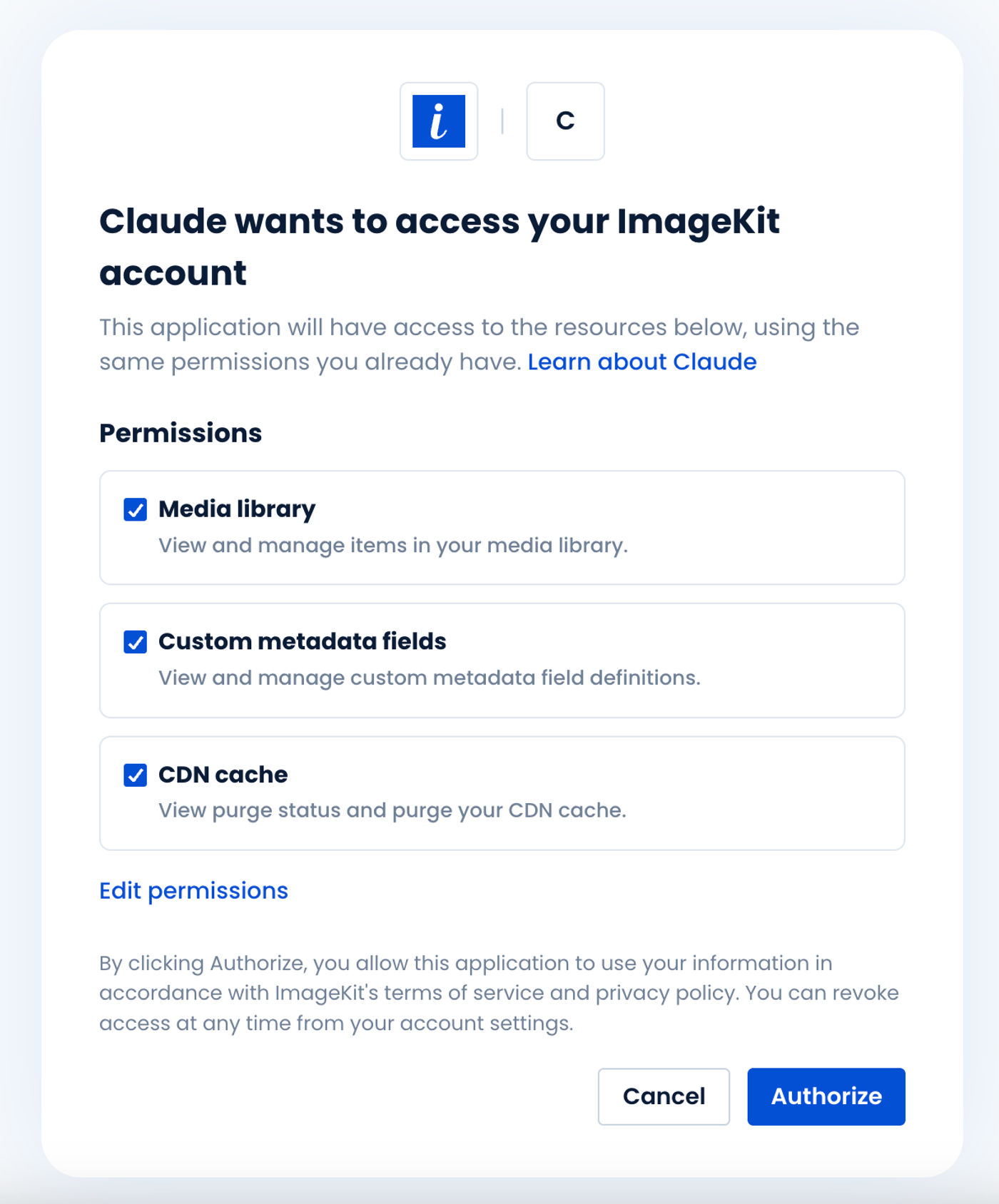
Here is how access works:
- Sign in with OAuth. On first connect, your MCP client redirects you to
imagekit.io. You sign in the same way you open the dashboard. The assistant never sees your password or API keys. - Pick granular permissions. Choose which resources the assistant can use, such as the media library, custom metadata fields, or CDN cache. Then use Edit permissions to grant view, create, update, or delete independently. A search-only assistant doesn't need upload or delete.
- Never more than you already have. Every tool call is checked against both the permissions you granted and your current ImageKit role and DAM permissions. A restricted user can only act on files, folders, and collections shared with them, just as in the dashboard. If your role changes, the assistant's access changes with it.
- Ask again when needed. If the assistant later needs a permission you didn't grant, it receives an "insufficient scope" response and your client prompts you to approve more access. Nothing escalates silently.
- Revoke anytime. Connected clients appear on your user profile. Revoking a grant cuts off access immediately.
- Destructive actions are flagged. Tools that overwrite or delete data are marked as destructive, so MCP clients can ask for your confirmation before running them.
Things you can ask
Once connected, you work in plain English. A few examples:
- "Find all product images uploaded in the last 7 days that don't have a
categoryvalue, and tag themneeds-review." - "Upload this hero image to /campaigns/summer-2026, tag it
bannerandhomepage, and set the brand to Acme." - "Move everything in /old-assets/2024 into /archive/2024 and unpublish it."
- "Create a public link for the approved logo pack that expires at the end of the month."
- "Who has access to the /legal folder? Remove the contractors group."
- "I just replaced /banners/sale.jpg. Purge it from the CDN."
- "Add a new origin for our GCS bucket and create a URL endpoint that uses it."
- "How much bandwidth did we use this month compared to last month?"
- "Give me an ImageKit URL that removes the background from this product shot and places it on a white 1:1 canvas."
Get started in minutes
ImageKit also publishes agent skills: short playbooks that teach your assistant how to use the MCP servers well. They cover choosing the right server, writing search queries, uploading without inlining file bytes, managing access control, building transformations, and searching the docs. Install them in any IDE with one command:
npx skills add imagekit-developer/skills --allThen add the MCP servers to your client. For example, in Claude Code:
claude mcp add --transport http imagekit_devtools https://devtools-mcp.imagekit.io/mcp
claude mcp add --transport http imagekit_dam https://imagekit.io/mcp/dam
claude mcp add --transport http imagekit_admin https://imagekit.io/mcp/admin
Or install the plugin, which bundles the skills and all three servers:
/plugin marketplace add imagekit-developer/skills
/plugin install imagekit-plugin@imagekit-tools
In Cursor, add the servers to ~/.cursor/mcp.json:
{
  "mcpServers": {
    "imagekit_devtools": { "url": "https://devtools-mcp.imagekit.io/mcp" },
    "imagekit_dam": { "url": "https://imagekit.io/mcp/dam" },
    "imagekit_admin": { "url": "https://imagekit.io/mcp/admin" }
  }
}
Setup for VS Code Copilot, Claude Desktop, Claude.ai, Windsurf, and Codex is covered step by step in the Build with AI documentation. The ImageKit servers are also listed on the official MCP Registry, so clients and directories that read from it can discover them directly.
The first time you use the DAM or Admin server, your client opens the ImageKit sign-in and consent screen in your browser. Approve the permissions you want, and you're ready to go.
If you previously connected https://api-mcp.imagekit.io/mcp, remove it from your client and add the DAM and Admin servers instead.
Best practices
- Start with least privilege. Grant view access first. Add create, update, or delete only when a workflow needs it.
- Connect as the right user. Use an ImageKit user whose role matches the work, not an account administrator, unless that access is truly needed.
- Keep a human in the loop for destructive actions. Review bulk deletes, access-control changes, and cache purges before approving them.
- Revoke what you don't use. Remove MCP clients you no longer use from your user profile.
Wrapping up
ImageKit's remote MCP servers turn an AI assistant from something that explains your media workflows into something that runs them. That covers searching by real business attributes, uploading without token limits, reorganizing folders, sharing assets, managing delivery setup, and checking usage. You stay in control of exactly what it can touch.
Head to Build with AI to connect your first client. If you don't have an ImageKit account yet, sign up for free and try it on your own library.