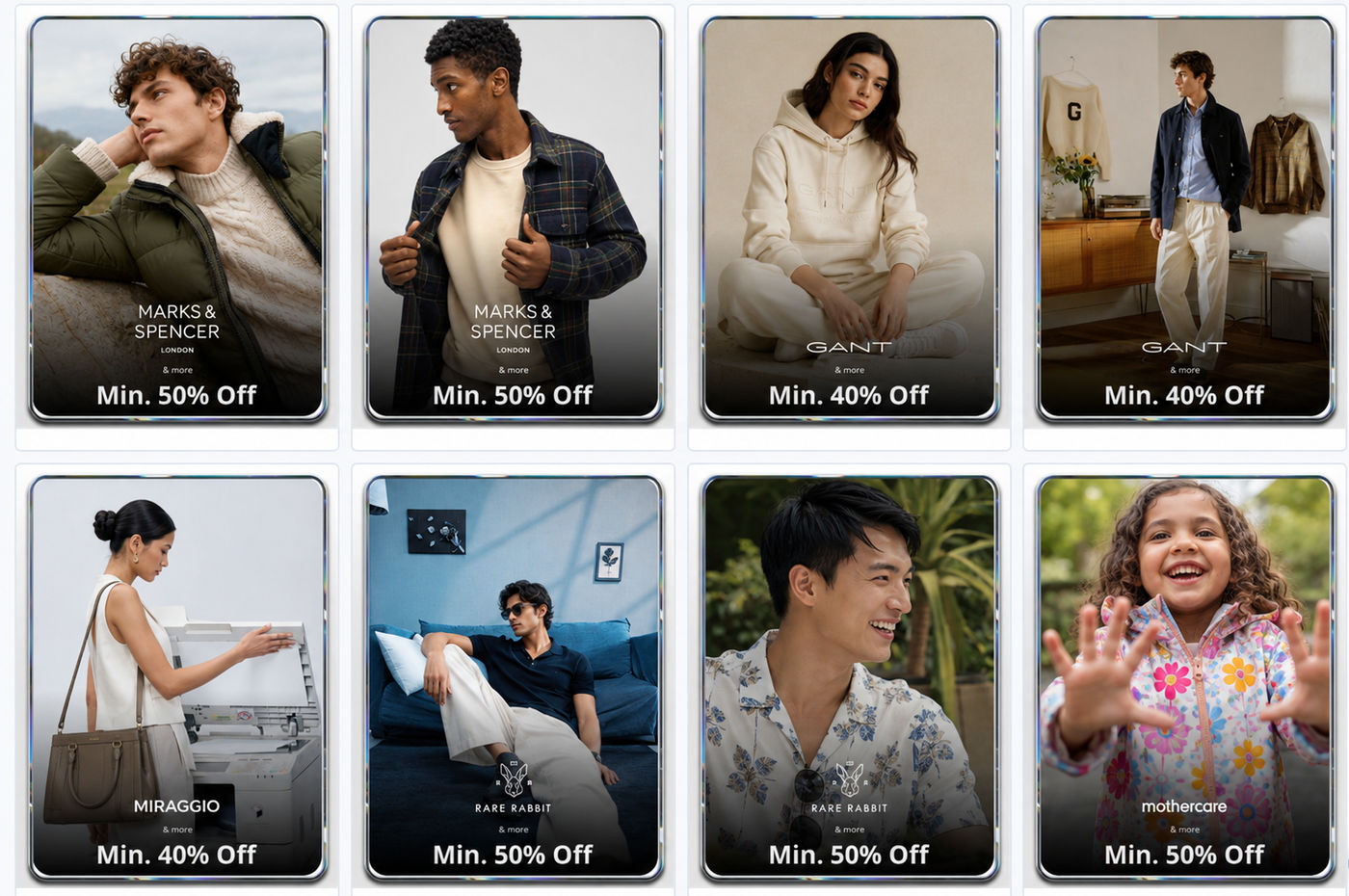
For ecommerce, marketing, growth, and creative operations teams, a single campaign rarely means a single creative.
A large sale may run across multiple brands, categories, customer cohorts, markets, and languages. One shopper may need to see a banner for shoes. Another may need to see a banner for T-shirts. A returning customer may need a different offer from a first-time visitor. A regional team may need localized copy. A growth team may want to test different calls to action for the same promotion.
In most cases, the creative system is already defined: the layout, typography, colors, spacing, logo placement, and visual hierarchy are fixed. What changes are the campaign inputs, such as product imagery, logos, headlines, promotional messages, localized copy, and CTAs.
Yet producing all these variations still takes significant time. Teams often spend hours preparing campaign assets before launch, even when every output follows the same approved design.
Today, we're introducing Creative Automation in ImageKit, a faster way for teams to generate campaign creatives using reusable, brand-approved templates, plus an AI Assist, a built-in capability that accelerates the creative generation process using natural-language prompts
How Creative Automation helps
With Creative Automation, design and brand teams can create templates that preserve brand-critical elements such as layout, typography, colors, spacing, logo placement, and visual hierarchy.
Marketing, ecommerce, growth, and regional teams can then generate campaign variations by updating only the approved variable elements, like product images, headlines, category names, promotional messages, localized copy, and calls to action. This gives teams a governed way to self-serve campaign creatives without compromising brand consistency.
Marketers can launch faster. Creative operations teams can reduce repetitive production work. Designers retain control over how every asset is structured and styled.
How Creative Automation Works in ImageKit
Creative Automation in ImageKit is built around three core ideas: reusable templates, controlled variables, and scalable generation workflows.
A template defines the approved creative structure, including the layout, styling, and visual hierarchy. Variables define the specific parts of that template that can be changed, such as product images, logos, headlines, offers, CTAs, or localized copy. Once these templates and variables are in place, teams can generate campaign variations manually, by uploading a CSV, or with the help of AI.
A key part of this workflow is AI Assist, a built-in capability that helps teams create and adapt campaign inputs using natural-language prompts. Teams can use AI Assist to translate campaign copy, generate new variations from existing entries, create CTA options, or produce inputs for A/B testing. Every AI-generated suggestion remains fully reviewable and editable before export, so teams stay in control of what goes live.
Once generated, creatives are saved back into ImageKit as standard assets. From there, they can be organized in the DAM, enriched with tags and metadata, searched, shared, governed, accessed through APIs, and delivered through ImageKit's media delivery infrastructure.
Let's dive deeper and look at some examples of each step of Creative Automation.
Build reusable templates
Once the creative's structure is finalized, teams can turn it into a reusable template inside ImageKit.
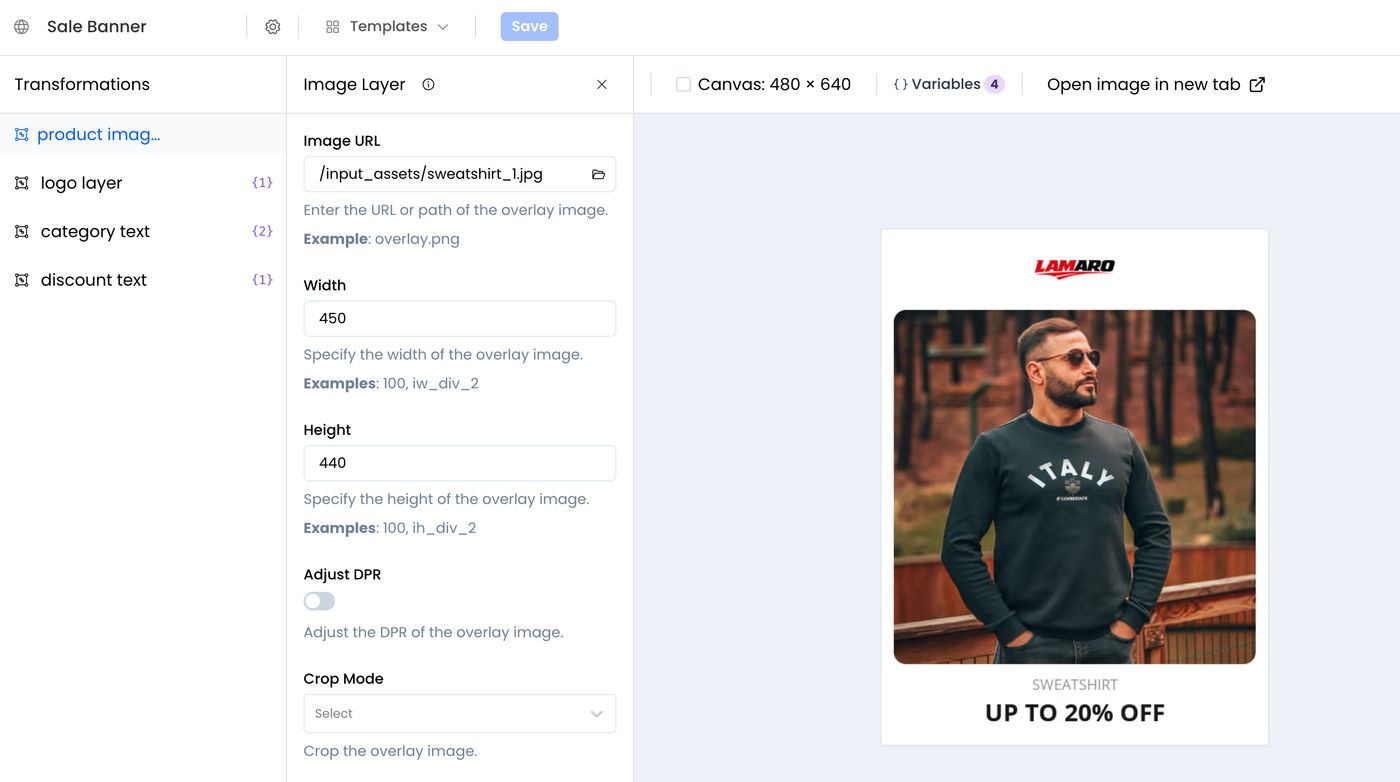
Templates are built using layer-based controls, giving designers a precise way to define how each part of the creative behaves. Canvas layers set the base format and dimensions. Image layers control where product photos, logos, brand marks, or campaign visuals appear, along with how they should fit, crop, or align within the design. Text layers define how campaign copy is styled, positioned, and rendered across variations.
This matters because campaign creatives often need to support many combinations of content. A product image may have a different aspect ratio. A brand logo may be horizontal, vertical, or square. A category name may be short in one market and longer in another. A discount message may change from "Flat 30% Off" to "Buy 2, Get 1 Free." The template needs to absorb these changes without breaking the design.
Once saved, the template becomes a production-ready creative system. Teams no longer start from a blank design file for every campaign variation. They start from an approved structure that is ready to generate outputs.
Define variables for governed customization
After the template is built, teams decide how much flexibility each campaign user should have.
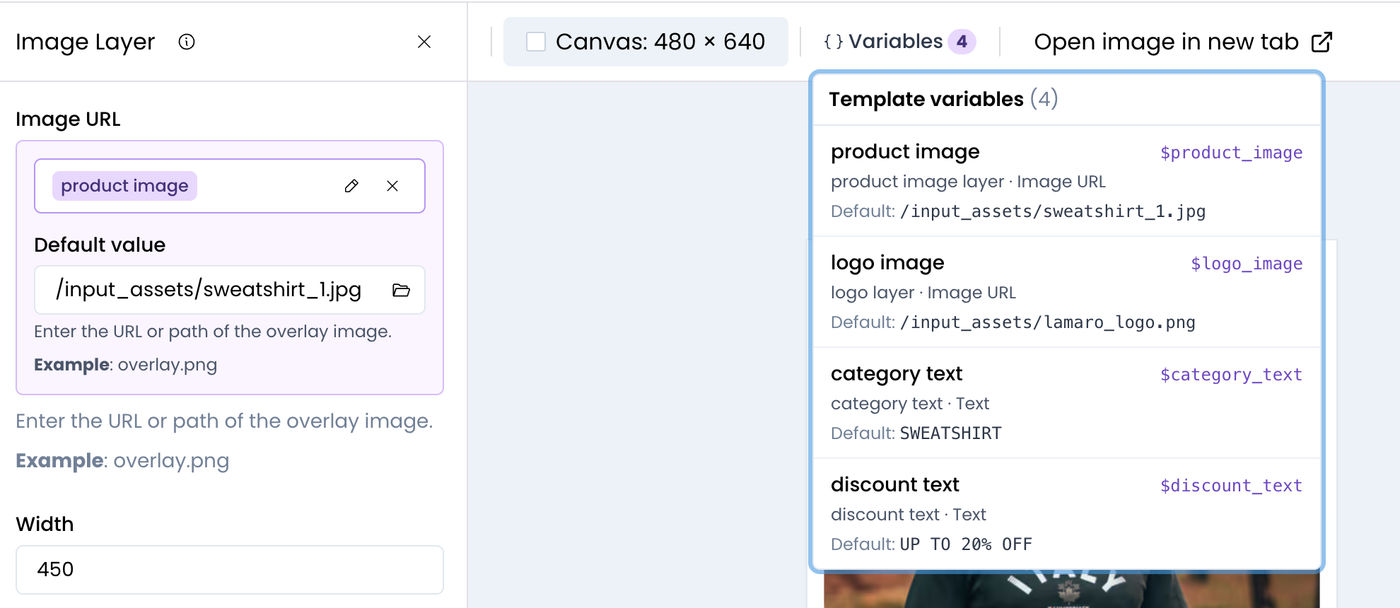
Instead of exposing the full design for editing, ImageKit lets teams expose only the fields that need to change. These fields become the campaign inputs that marketers, ecommerce teams, regional teams, or agencies can update without touching the underlying design.
This creates a useful separation between configuration and execution. Designers configure how the creative should behave. Campaign teams can then supply the content needed for each variation to support different markets, languages, categories, offers, and customer segments. The result is faster production without opening up the design system to accidental changes.
Generate variations
Once the template with its variables is ready for use, teams can generate campaign variations based on the workflow that best fits the campaign.
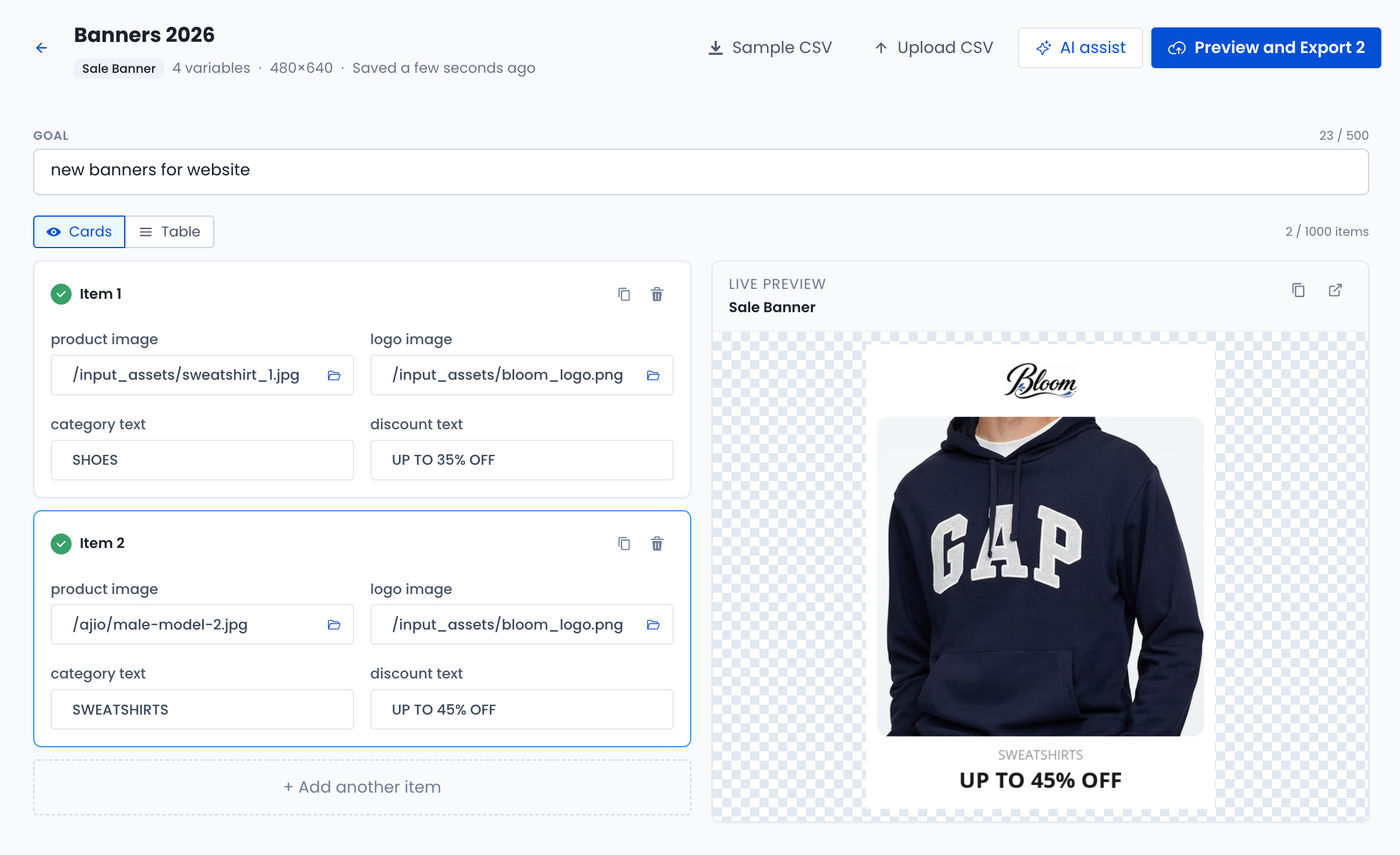
For smaller batches, users can fill in the required inputs directly in the ImageKit dashboard. Each item represents one creative output.
For larger campaigns, CSV-based generation helps teams move faster. Each row in the CSV represents one creative output, and each column maps to an approved input in the template.
Use AI Assist for localization and experimentation
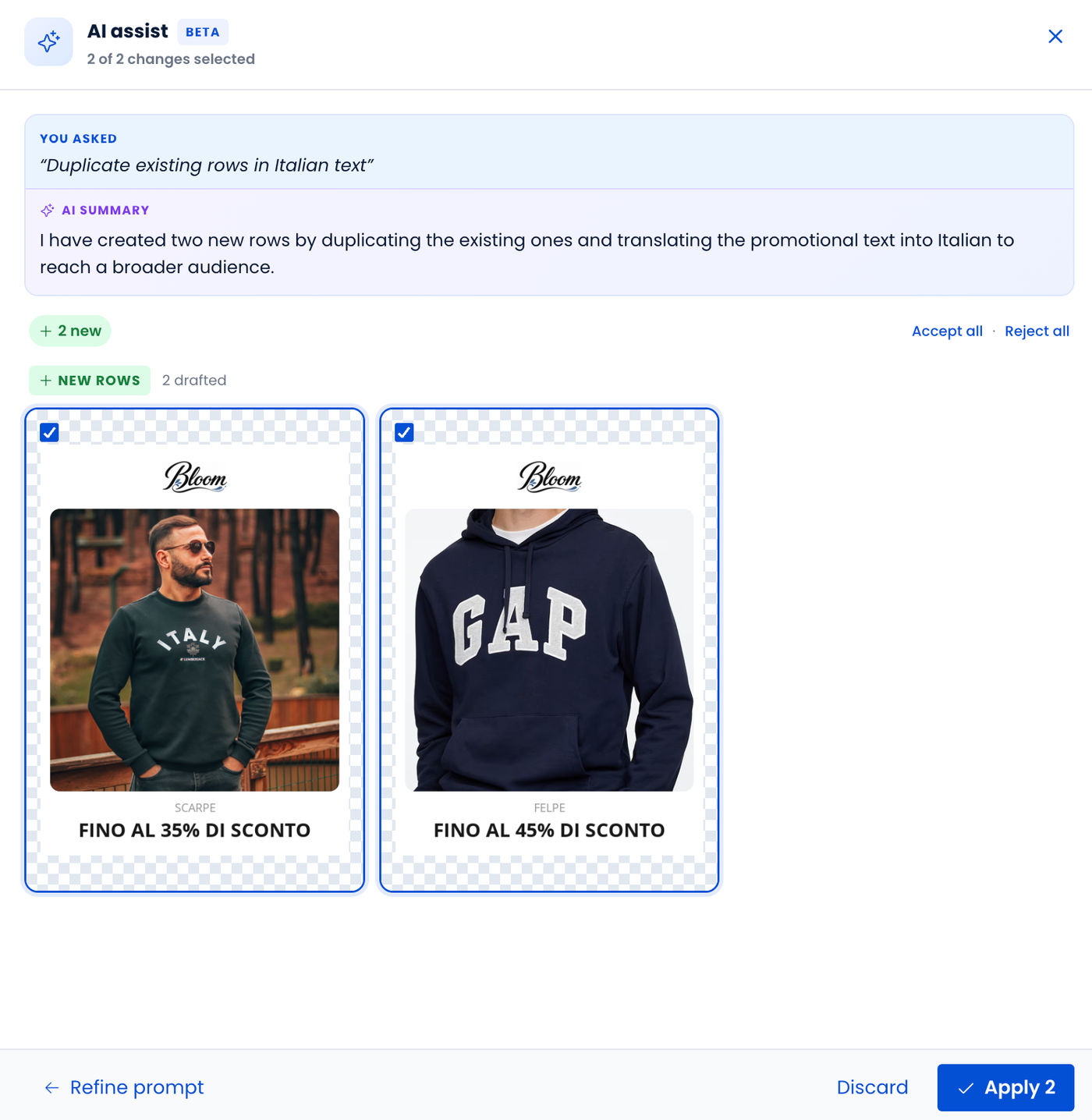
AI Assist accelerates the generation workflow by helping teams create or adapt campaign inputs with natural-language prompts.
Instead of manually preparing every text variation, translation, or testing input, teams can ask AI Assist to generate entries based on the existing template data.
For example, suppose a team has created a set of English banners for a sale campaign. The product images, categories, and offers are already in place. The team can ask AI Assist to create another set of entries with the campaign copy translated into Spanish. The new entries can then be reviewed, edited, and approved before export.
The same approach can be used for campaign experimentation. A growth team may start with one version of a banner that uses the CTA "Shop Now." They can ask AI Assist to create another set of entries with a different CTA, such as "Explore the Collection" or "Get the Offer." Instead of editing each banner entry manually, the team can quickly create A/B testing inputs from the same campaign structure across hundreds of banners with one prompt.
All AI-generated suggestions remain reviewable and editable. Teams stay in control of the final copy, while AI Assist reduces the repetitive work involved in creating localized, personalized, or test-ready variants.
Built Into ImageKit DAM, Media Processing, and Delivery
Creative Automation works inside the same ImageKit account where media assets are already stored, managed, processed, and delivered.
Approved assets from ImageKit DAM can be used directly in templates, including product images, logos, brand assets, and campaign visuals. Teams do not need to move files into a separate creative production tool or duplicate assets across systems.
Once generated, finished creatives are saved back into ImageKit as standard assets. They can be organized into campaign folders, tagged, enriched with metadata, renamed, searched, shared, and made available to downstream teams.
Each exported creative receives an ImageKit delivery URL, making it ready for use across websites, apps, landing pages, email campaigns, marketplaces, and commerce experiences.
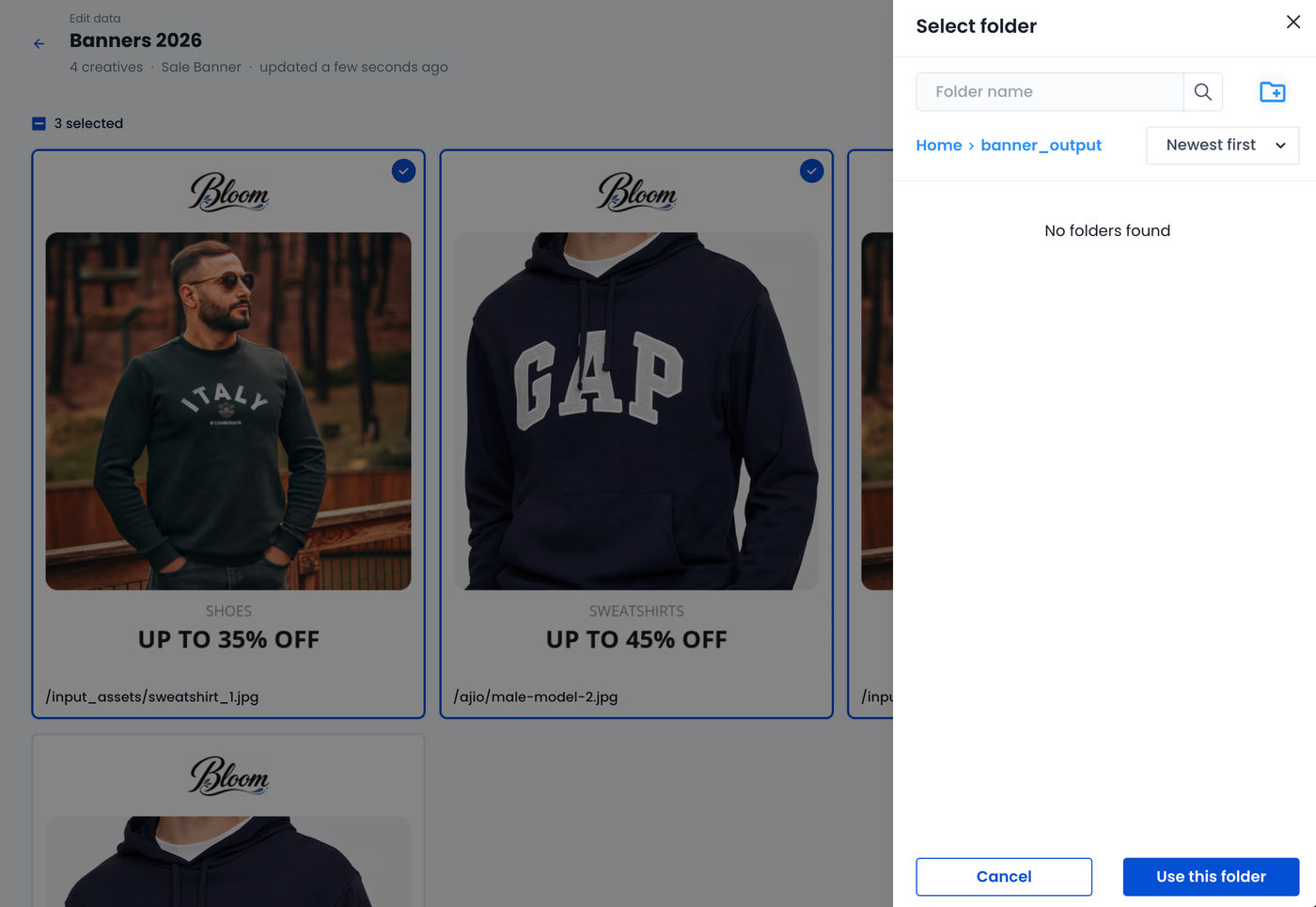
Since all assets, templates and exported creatives remain within ImageKit, teams can use the same optimization, transformation, API, and CDN-backed delivery workflows they already rely on.
Real-world ways teams are using Creative Automation
Early customers are already using Creative Automation to explore how a single approved template can produce many campaign-ready variations across categories, markets, audiences, and channels. Here is how some companies are using Creative Automation:
- E-commerce promotions: Generate banners across categories, brands, product groups, discounts, and customer segments from the same campaign template.
- Personalized campaigns: Create different creatives for first-time visitors, returning customers, loyalty members, regions, seasons, or interest-based cohorts while keeping the layout consistent.
- Performance marketing: Produce A/B testing variants for headlines, CTAs, offers, product combinations, or localized messages without creating a new design request each time.
- Marketplaces and catalog workflows: Convert structured product, seller, brand, or offer data into finished campaign assets at scale.
Getting Started
Creative Automation is available to all users in the ImageKit dashboard.
The easiest way to understand the workflow is to follow the launch walkthrough video and recreate the sample template inside your own ImageKit account. The walkthrough shows how a template is created, how variables are defined, how variations are generated, how AI Assist helps with copy and localization, and how finished creatives are exported back into the Media Library.
Launch campaigns, test ideas, and deliver on-brand visuals faster with Creative Automation.
Available for all ImageKit accounts - Sign up today.